Showing posts with label applescript. Show all posts

July 05, 2014

Creating a New Automation Service for Accordance

As of Accordance 10.4.3, Automator Actions are now included that allow you to build your own OSX Services as well as other Automator Workflows. The best starting place is to download the sample Services from Accordance, and get familiar with those, including the Instruction file included with them.
This is a tutorial on how you could go about building a new Service workflow, one that queries you for a verse reference in a dialog box and then inserts the full text of that reference in whatever document you're in. (This tutorial uses OSX 10.9.)


1. Launch Automator.app which is located in the /Applications folder.

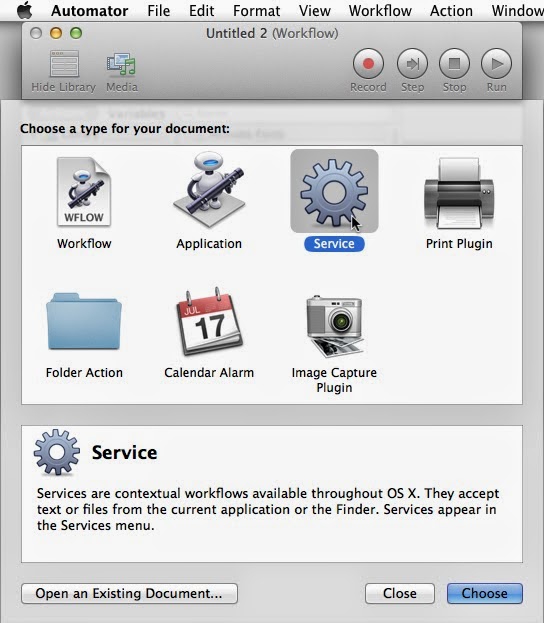
2. When the dialog box for a new workflow shows up (you may have to select menu File/New), choose the option to create a new "Service". A Service is a special type of Automator Workflow that gets installed in the system-wide Services menu for quick access to automation tasks from inside other programs.


This opens a new Workflow in Automator. A Workflow is the palette that you can create individual steps for the Workflow to run that results in automated tasks being accomplished. The pane on the right is the canvas where you create the steps. The top pane on the left are the individual Automator Actions. These actions represents a large number of single tasks that can be added to the Workflow (by dragging them over). They are the building blocks of your automation Workflow. The pane below on the left shows the description of each Action... what kind of input it works on, what it accomplishes, what the results will be. As you add Actions to the Workflow on the right, the results (output) of one Action get passed on to the next Action in the Workflow.

3. Select menu File/Save and name the Service something descriptive of what it will accomplish. We will name this service "Acc - Query Insert Verses". The 'Acc' will group it with other Accordance Services, the 'Query' indicates it will first ask you for input, and the rest describes that it will insert the full text of the verses.
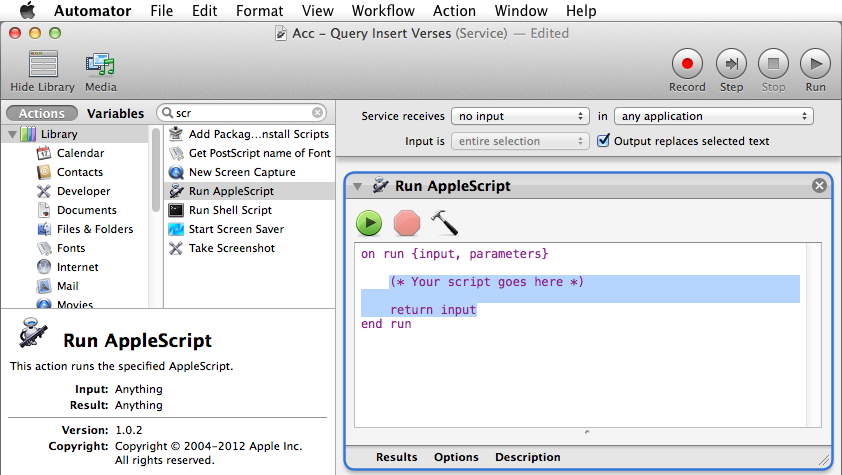
4. For creating our Service, the first task we need to accomplish is bringing up a dialog box to allow us to input the verse references we want to insert. There is an Automator Action called "Ask for Text", which brings up a dialog box. This Action is flawed, however, in that once it pops up you still have to click on it to type in it. So, we won't use it. We can overcome this flaw with a little Applescript. Find the Action titled "Run Applescript" and drag it into the Workflow space.

5.  Change the text of the default Applescript content to bring up a dialog box. You don't need to know anything about scripting to accomplish this. You might observe that the script will run every command between the words "on run" and "end run". So, let's change what the text runs.
Delete the line that says:
return input
(You can also delete the "(* Your script goes here *)" line if you like. It's just a comment.)
Paste the following command onto its own line, in between the "on run" and "end run" lines.
return text returned of (display dialog "Enter a verse reference:" default answer "")
Note that this text is all one paragraph. The result should look like this:

6. Next, find the Accordance Actions. You can do so by typing "acc" in the search bar above the Actions. You will see two Accordance actions. One is "View Text in Accordance". This Action building block is for taking references and searches and bring Accordance forward in order to run those searches in a new text or tool of you choosing. Find the Action called "Get Text From Accordance" and drag it underneath your Applescript action in the Workflow.

7. Select the options you desire in the "Get Text from Accordance" Action. The popup menu will populate with the short name of all the Text Modules you have installed in Accordance. I'm going to select "First Text Module" which will pull the verses from the module at the top of my module list in the Accordance Library. You can also choose whether the text is to be formatted using the Citation format you stipulate in Accordance Preferences, or if you prefer it to just use one verse per paragraph.

8. At the top of the Workflow, change the option to display "Service receives no input". This means that the Service does not require you to have anything selected in order to activate it (because you will be providing the input in a dialog box.)

9. Close to that option, select the option for "Output replaces selected text". This is what instructs the Service to insert the results of the Workflow into the current cursor/selection of your current document. This means that our Services will only be available in the Services menu when the current selection is a type of document that you can in fact edit/type into.

10. Save the Service Workflow and quit Automator, and you're done.

Now, you can be in a text document/email/etc. and insert verses quickly by:
1. Placing the curser where you want and invoking the Service "Acc - Query Insert Verses":

2. Enter a valid verse reference in the dialog box:

3. Enjoy the textual goodness that results:

You can peruse the Actions in Automator (especially those in the "Text" section) to get an idea of the possibilities of what you can create.
Note that the Service you just created, as well as the sample Accordance Services you should have installed, are located in ~/Library/Services/. If you want to add a new Service that's only a slight change from one you already have, you can select the file in that folder, duplicate it, open it in Automator by double-clicking, change the options (such as selecting "Second Text Module", rename the file and save and quit.
Note also, that if you have a Service you end up using often, do yourself a favor and add a global keyboard shortcut using the Apple Preferences / Keyboard Preferences.
You can find more information about this in the Instructions that come bundled with the sample Accordance Services.

July 03, 2014

Automation in Accordance 10.4.3

Accordance 10.4.3 has added new features that have opened up new avenues for automation. These new capabilities are the primary feature enhancement for this point upgrade.  I am delighted in their efforts.


The new features are:
1. A URI protocol that allows creators to embed links into web pages/pdfs/emails/other documents that will open Accordance to the specified text or tool, even searching the specified field for the specified text. This link will open your default text module and search for "Joseph": accord://search/;Words?Joseph


2. New Services that allow for
  • selecting text in some other document and searching for and viewing it in Accordance
  • inserting full text into your document
3. Two new Automator Actions that allow any number of automation applications (of which the above mentioned Services are actually just beginning examples of what can be created in Automator).

Since I have Applescripts and Services and Actions etc. floating around out there that have tried to fill the gap to date, I thought it would be helpful to update users on the new situation regarding automation.

I have for years produced the Accordance Script Library for automating Accordance. When users drug this into their ~/Library/Scripts folder, they could then use other scripts/services/actions  created by me and other industrious users for doing the same kinds of things the new Services make possible.

My Accordance Script Library pulled text out of Accordance invisibly using Applescript APIs (hooks that allow you to programmatically get data from a process). This capability will not change.
The Library also allowed for bringing Accordance to the front, opening a Tool of choice and running a search, but it accomplished all this through [quite] clever uses of User Interface Scripting—simulating menu selections, key presses and mouse-clicks through scripts. It was always clunky. The new URI protocols now accomplishes much of the same thing and makes it much more robust. A short Applescript can use the URI protocol to interact with Accordance, using the 'open location' command:

    open location "accord://search/;Words?Joseph"

In time, I will be rewriting the Accordance Script Library to use the URI protocols where appropriate to interact with Accordance.

One note, however, is that my previous Accordance Services are now obsolete. I will this weekend be removing them from my Downloads section, and join others in supporting Accordance's new options using Automator to create the Services you might like.

May 08, 2011

Applescript to remove and add login items

The login items for your user account in system preference is where you set applications to launch anytime you login to your computer, including restarts. My recent switch back to Quicksilver prompted the compilation of this script, which shows code that will remove other launchers from startup status and ensure that QS is set.

-- Script to remove other launchers from login items and add Quicksilver

tell application "Finder" to set QSpath to POSIX path of (application file id "com.blacktree.Quicksilver" as string)

tell application "System Events"
if login item "LaunchBar" exists then delete login item "LaunchBar"
if login item "Alfred" exists then delete login item "Alfred"
if (login item "Quicksilver" exists) is false then make new login item at end of login items with properties {path:QSpath, hidden:true, kind:application, name:"Quicksilver"}
end tell

September 21, 2010

Services and scripts for Accordance 9

Updated: As far as I know, most Accordance scripts and Services are now working again as of Accordance 9.02. Please let me know if this is not the case.

Previous: Changes in the new version of Accodance have broken some of my scripts. This is common for each major release. Notice their widget is also disabled. I'm getting lots of contacts… I am aware things are broken. I can not work on a new compatible version of my script library until after a new Accordance hits the public, so sometimes it has been a matter of weeks. In this instance, you can know I will begin a new version of the Accordance Script Library once Accordance has released a version that works with their widget once again.

August 20, 2010

Cleaning up Windows in a non-Scriptable Application

Here is an example of using User Interface scripting in Applescript to move windows around in an application that is not otherwise scriptable. Through UI Scripting you can do some limited interface tasks with an app that you otherwise have no access to. For even the worst applications in terms of scriptability, UI Scripting can provide access to things like windows that are open, their size and their position.
In the script, once I have collected an array of all open windows in an app, a series of "if" boolean statements are used to detect which window I'm now working with. Some of them have a title property that can be tested for, while others have a fixed window size that can be checked.

This example uses the Accordance application. Accordance has custom window classifications that do not respond to any "clean up windows" menu command. The app is not scriptable, and due to the custom nature of its user interface, the properties that UI scripting has access to are extremely limited. Windows can get moved around when connecting/disconnecting external displays. This app rearranges the windows how you would like them.

Here is the text of the script, and you can find a link to the script on the Downloads page. (On how to integrate such a script into your own workflow, look elsewhere on this blog or google Applescript to your hearts content.)


-- Clean up Accordance windows  v.1
-- This script will move the first main search window to the top left, and then move all palettes to the edges of the main display
-- Will have to be adjusted to meet your tastes and your external display setup.

tell application "Finder"
set screenBounds to bounds of window of desktop
set screenWidth to item 3 of screenBounds
set screenHeight to item 4 of screenBounds
end tell

tell application "Accordance" to activate
delay 0.5
tell application "System Events"
tell process "Accord"
set winCount to count windows
repeat with n from 1 to winCount
set thisWindow to window n
set winSize to size of thisWindow
set sw to item 1 of winSize
set sh to item 2 of winSize
set winPosition to position of thisWindow
set pw to item 1 of winPosition
set ph to item 2 of winPosition
if description of thisWindow is "dialog" then
-- it is a main search window
-- move to top left
set position of thisWindow to {1, 22}
else if size of thisWindow is {96, 552} then
-- it is a Resource palette
-- move to top right
set position of thisWindow to {(screenWidth - sw), 22}
else if size of thisWindow is {324, 46} then
-- it is a Text palette
-- move to middle bottom
set position of thisWindow to {(screenWidth / 2), (screenHeight - sh)}
else if ((get title of thisWindow) as string) is "Highlight" then
-- it is a Highlight palette
-- move to bottom right
set position of thisWindow to {(screenWidth - sw), (screenHeight - sh)}
else if ((get title of thisWindow) as string) contains "Keyboard Characters" then
-- it is a Character palette
-- move to top middle
set position of thisWindow to {(screenWidth / 2), 22}
else if ((get subrole of thisWindow) as string) is "AXFloatingWindow" then
-- is a palette, so only option left is Instant Details palette
-- move to bottom left
set position of thisWindow to {1, (screenHeight - sh)}
else
-- Must be another main search window
-- Can check for title, etc. to move them.
end if
end repeat
end tell
end tell

February 24, 2010

Create a Custom Paste Command in Word 2008

In Microsoft Word 2008, you can create custom Applescripts and the place them into a special folder giving them unique keyboard combo assignments. In this way, you can, create custom functions or combinations of functions that initiate with just one keystroke. For instance, let's say you wanted a simple paste command in Word, but one that first took care of some formatting changes for you. By way of example, let's say that you often copy scripture text from Accordance but before you paste it into your Word document, you want to remove the formatting and also remove the pilcrow symbols (¶) and the space following them from the text. A simple script can accomplish both tasks automatically for you.

1. Open Applescript Editor inside your Applications/Utilities folder (In OS X 10.5 this app is called Script Editor and found at Applications/Applescript)

2. Paste the following 7 lines into a new document window:

set theText to the clipboard
set AppleScript's text item delimiters to "¶ "
set theText to text items of theText
set AppleScript's text item delimiters to ""
set theText to theText as string
set the clipboard to theText
tell application "Microsoft Word" to paste special (text object of selection) data type paste text
(The last line of that script is kind of long, so make sure you do have it all on one line.)

3. Save the AppleScript as a script in ~/Documents/Microsoft User Data/Word Script Menu Items
(which is Word's user info inside the Documents folder of your Home folder). 

4. Give the script a descriptive name such as "Paste Scripture" but also add "\cV" (without the quotation marks) to the end of the name. This sets the keyboard combination to Control-v.  (for more info on adding keyboard shortcuts, have a look here.)

5. From now on, in Word, you can hit Control-v to run the script which will remove the Pilcrows ¶ and paste unformatted text into your document.

February 21, 2010

Pages Citation Paster Gets Served

Folks seem to continue benefitting from the Accordance to Pages Citation Paster which provides a function whereby the Citation Footnote in Accordance tools can still be used in Pages (which has a bug that ignores rich-text footnotes). You can get a fuller description of the utility here.

I have updated the download package to include a version that works as a Service in Snow Leopard. It allows you to assign a global keyboard shortcut. You can go to the Downloads section to grab it.

February 06, 2010

Accordance Services Collection Released

Do you find Accordance Bible Software useful? Would you like to have quicker access to your Accordance material from within other applications? The Accordance Services Collection gives you that capability. Using the new Services functions in Snow Leopard Mac OS X 10.6, you can look up scripture or text in Accordance or even quickly add scripture texts into a document you're working on. For an overview of what the Accordance Services Collection can do for you, have a look at the video tutorial below.


The Accordance Services Collections can be found on the Downloads page. The install includes a ReadMe file that explains the simple drag & drop installation process.

November 17, 2009

Accordance to Pages Citation Paster Updated

I've added some options to the Accordance to Pages Citation Paster. All of these new options can be changed by opening the script and altering a property value. Version 0.9 includes:

  • Removal of trailing whitespace (carriage returns, spaces) from copied text
  • Return insertion point to the body text after inserting footnote
  • Can set script to manually fix the font name/size of the text pasted into the body
  • Can optionally choose to Paste and Match Style in Pages
It's available in the downloads section.

November 13, 2009

Accordance Bibliographic Citations in Pages

I am making publicly available my "Accordance to Pages Citation Paster" script.

You can download the latest version from The Macintosh Biblioblog's Downloads section.
Here is more information from the ReadMe file.

Accordance to Pages Citation Paster

version 0.7

The Accordance to Pages Citation Paster is created to work with the bibliographical citation function within Accordance Bible Software in Accordance 8.4 and up. Using that function, you can paste in copied text as well as a footnote in word processors such as Microsoft Word. However, a shortcoming of iWorks Pages does not permit footnotes to be pasted into a document. This script is a workaround for that shortcoming. In addition, the script can by default also include the task of Copy as Citation in Accordance before bringing Pages to the front and pasting in the citation, so you can do it all in one command.

The Accordance to Pages Citation Paster script:

-- Can optionally Copy as Citation from Accordance first if it is the frontmost app.

-- Can optionally insert an empty footnote if none detected in the citation.

To install: Leave 'Put bibliography details as footnote' UNchecked in Accordance preferences in order to copy a citation format this script can use.

It can be launched from the typical script locations. For information about launching the script in the system wide Script Menu run the Applescript Editor and check the help files.

If you want to assign a keyboard shortcut to run the script, you'll have to use a tool like

Quicksilver ( http://www.blacktree.com/ )

or FastScripts ( http://www.red-sweater.com/fastscripts/ ). For a simple, system-wide key combo trigger I'd recommend FastScripts. The script can also be launched from utilities like Butler, LaunchBar, Automator, or even Services. (Do your own research on how to do so, please.)

If you open the script in the Finder, it will not run, it will open it up in Applescript Editor. There are a couple options you can tweak inside the editor. The beginning of the script includes this:

You can change copyCitationFromAccordance from true to false to prevent the script from doing the Copy as Citation within Accordance.

You can change insertEmptyFootnote from false to true to have the script insert an empty Footnote when pasting a citation that does not include one.

You can also change the script's speed to ensure stability or try and speed it up (by setting the n property to 0

Note: You didn't pay for this, so you get no implied warranties or guarantees for it. (If you do send me a donation, then you can demand any guarantee you like.)

Note: The author is not associated with OakTree software and the Accordance folks are not responsible for the support, use or content of this script.

Written by Joe Weaks, November 13, 2009

Available at The Macintosh Biblioblog

May 18, 2009

FlashCord File Converter

FlashCord Converter

(Accordance Analysis to Tab Delimited File Converter) 

Available for download on the downloads page.

This droplet allows you to convert text from an Accordance analysis result into a tab delimited file for use in a flashcard program or spreadsheet. The tool is designed to be used by users of Accordance Bible Software. For more information about Accordance itself, please reference Accordance Bible Software (Oak Tree Software, Inc.  www.AccordanceBible.com).

Basic Use

You may launch the application directly and then either choose a data file to convert or use the contents of the clipboard. Also, you may drag and drop a saved Analysis window from Accordance onto the application in order to create the tab delimited file.

Creating a Data File

Creating text files to be converted is completed within Accordance in three steps-- create your search within a tagged text, set up a compatible display in an Analysis window, and save that window as a text file.

I. Create your search within a tagged text

Using the Word search within a tagged text module, run your search.

II. Set up a compatible display in an Analysis window

Use the Details button to open an Analysis window.  Choose "Set Analysis Display..." in the Display menu (Command + t) in order to customize your Analysis window. 

In the section of the "Set Analysis Display..." window titled "Select items for sort and display...", you may request specific information about the words that meet the search criteria. Adding multiple items to a column provides a hierarchical breakdown for each word. Remember, if the search contains only a single term, then only the first column is relevant. 

The converter can read three different formats/sets of information. 

The Analysis results may be set to three different display options: 

1. LEX

This setting will result in a data file that can be used to quiz you on lexical forms and their English gloss. 

2. LEX  |  INFLECT

This setting will result in a data file that can be used to quiz you on inflected forms and their lexical form and English gloss.

3. LEX  |  INFLECT  |  TAG

This setting will result in a data file that can be used to quiz you on inflected forms and their lexical form, English gloss, and parsing information. 

Note: In place of "TAG", any of the sort order options may be used, such as Gender, PrtSpeech or Class.

In addition combination of information for different columns in a multi-word search may be used:

The results of each of these three Analysis results window text display options in Accordance would look like this:

_______________________________________

Total number of verses = 6

  (total number of verses displayed = 6) 

[noun] [verb] *fos (6 total words)

Number of different forms = 6:

      dida¿skaloß  teacher = 1

      e˙leuqeri÷a  freedom = 1

      mimhth/ß  imitator = 1

      shmei√on  sign, miracle = 1

      uJpo/deigma  example, pattern = 1

      cara¿  joy = 1

      ---------------

      gi÷nomai  to become, be, be born, be created = 2

            gi÷nesqe = 1

            e˙genh/qhte = 1

      euJri÷skw  to find = 1

            euJrh/sete = 1

      hJge÷omai  to lead, consider, count, regard = 1

            hJgh/sasqe = 1

      kale÷w  to call, summon, invite = 1

            e˙klh/qhte = 1

      lamba¿nw  to take, receive, choose = 1

            la¿bete = 1

      ---------------

      aÓdelfo/ß  brother = 5

            aÓdelfoi÷ = 5

                  NOUN masculine plural nominative

                  NOUN masculine plural vocative

      bre÷foß  infant = 1

            bre÷foß = 1

                  NOUN neuter singular accusative = 1

_______________________________________

Note: The sort order must be one of the three shown above. For instance, choosing INFLECT  |  LEX  instead of LEX  |  INFLECT will result in strange, if not silly, results.

For more information on how to customize the Analysis display, see the Accordance help file titled "Set Analysis Display Dialog Box for Tagged Texts".

III.a Save the Analysis window as a text file

Under the "File" menu, choose item "Save as Text File". Make certain your settings in the preferences do not convert the Greek font from Helena, or the Hebrew font from Yedudit, but that they do reverse the direction of Hebrew characters. And, make certain you save the file as plain text (not rtf).  You will drop this resulting file onto the converter to use it as a data file.

Note: If you're clever enough, you can create your own custom data files by manually combining two or more text files. You can add new words to an existing tab file.

III.b Copy the contents of the Analysis window

Simply select all and then copy the contents of the window for use in the converter.

IV. Run the converter

If you saved a file, you can simply drag that file onto the droplet app. It will save the new file with a new name by default in the same location. If you have saved the data on the clipboard, simply launch the app and use the data from there, choosing where to save the file.

Purpose and Usage

The purpose of the tool is to be able to use the spreadsheet format data in a spreadsheet for your own research, or also to import them into a flashcard program. 

Versions

Known issues:

Need to fix capabilities for unicode fonts

Review the addition of a blank line between appended data

Current version:

Current version is 0.2, Released 5/19/09

March 29, 2007

Automator Action for Accordance

If you are familiar with Automator, and if you use it at all, you may be interested in this Automator Action I wrote in XCode to work with Accordance. It receives a text string scripture citation and returns the full scripture text to the next item in the workflow. If you are interested in more information on Automator, start with Apple's site. This will appeal to a limited segment, I know, but for those numbers it will be a welcome tool.
You may get the file here.

February 13, 2007

Applescript and Accordance to fill a Word table

I've had some questions about how I use something like Applescript to add full scripture texts to a table of scripture references. Instead of talking about it, I'll just show you a script to do that very thing. I've added comment lines that describe what most of the lines do. The scriptability of Microsoft Word 2004 is phenomenal.

-- This script cycles through a table of scripture references and looks up the text in Accordance, adding the full text to the end of the cells.

-- It works on the first table of the active document in Microsoft Word.

tell application "Microsoft Word"

-- work on the first table of the active Word document

set theTable to table 1 of active document

set rowCount to (count rows of theTable)

set columnCount to (count columns of theTable)

-- speed things up by not redrawing the window after each retrieval

set screen updating to false

-- repeat the functions with every cell of every row of every column

repeat with rr from 1 to rowCount

repeat with cc from 1 to columnCount

-- you can change those two lines to work on only certain rows or columns, such as:

-- repeat with cc from 3 to 5

-- will restrict it to columns 3, 4 and 5.

-- set the current working range to the next cell

set aCell to cell cc of row rr of theTable

set aRange to create range active document start (start of content of text object of aCell) end ((end of content of text object of aCell) - 1)

set theRef to content of aRange

-- empty cells have a ~, indicating move on to next cell

if theRef does not contain "~" then

-- try to get the scripture text from Accordance

try

-- change the module name from "GNT" to whatever you wish.

-- the result is in the custom citation format of Accordance prefs

tell application "Accordance" to set theText to «event AccdTxRf» {"GNT", theRef, true}

-- set the current range to the end of the contents of current cell

set aRange to create range active document start ((end of content of text object of aCell) - 1) end ((end of content of text object of aCell) - 1)

-- add the results to the end of the cell after a carriage return

set content of aRange to return & theText

-- redefine the range to inclue the text we just placed in the cell

set aRange to move start of range aRange by a character item count 1

set aRange to change end of range aRange by a cell extend type by selecting

-- do whatever formatting you'd like to the inserted text, otherwise, it will have the character format already present in the cell

set style of aRange to "GreekText"

-- set bold of font object of aRange to false

-- set color index of font object of aRange to black

end try

end if

end repeat

end repeat

-- ok, now update the window of the Word document

set screen updating to true

end tell

October 03, 2006

Quicksilver Actions for Accordance

After some work, and feedback from others, I can make available to a wider audience a set of Quicksilver Actions that interact with Accordance. I have maintained from time to time a script database called InterCord which uses Mac OS X technologies to enhance the inter-application experience with Accordance. Problem is, I rarely find the time to polish the scripts and such enough so that they'll work on other's machines.
Well, if you are a user of Quicksilver and Accordance, you'll love these. If you don't yet use Quicksilver, this may convince you. Essentially, this bundle of Quicksilver Actions enables you to do things like pull the selected scripture reference from a document and have QS paste the text into your front document, or otherwise process it. The actions also allow you to use any text and display a search for it in any Accordance tool of your liking.
What's that? You're reading a PDF or a web page about the proximity of Shechem to a mountain pass? Just highlight shechem and in 5 or so keystrokes you can have Accordance to the front, displaying Shechem in a Map window. I'm not kidding you.

Or, want to quickly, insert the text of Psalm 20 into your current document. It's a all right at your fingertips, and true to the beauty of Quicksilver, never taking your fingers off the keyboard. Such a workflow becomes pure muscle memory.

The Quicksilver Actions are now a part of the whole Accordance Script Library. You can download it in the downloads section.

There are many more options. Have a look at the detailed ReadMe file here:
Accordance Quicksilver Actions ReadMe
You may download these Accordance Quicksilver Actions here:
Accordance Quicksilver Actions Download
If it ever happens, I'll get more of the InterCord modules ready for public consumption. Next step will be to release the Automator Action... the Word plug-in... and generic versions of these scripts that can work from anywhere--the script menu of any app, including the slightly less powerful Launchbar or Butler. I have all these working OMM (on my machine), it just takes so much time to get them ready to work on others' machine as well with minimum heartache.